
Build A Custom Win2D RadImageEditor Tool
Posted on February 19, 2016 • 3 <no value> minutes • 586 <no value> words
Table of contents
Telerik has recently ported the RadImageEditor to Windows Universal (8.1 Universal right now, UWP is coming very soon). It is powerful for something that only needs a few lines of code to use the 20 predefined tools.
But what if you wanted something not in those 20? Or what if you didn’t want to have a dependency on the Lumia Imaging SDK (needed for the built-in tools)?
One great features of RadImageEditor is the ability to make a custom tool, tool group or layer. Today I’ll show you how to create a Win2D tool group and add a custom GaussianBlurTool.
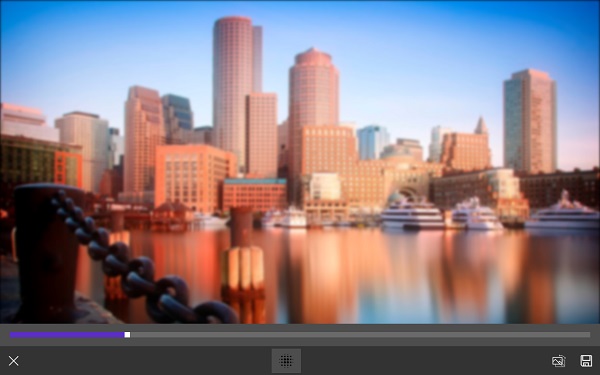
Here’s the result:

Let’s start with the tool class.
RadImageEditor provides four classes that you can inherit from to make your tool:
- ImageEditorTool: The most basic tool type.
- RangeTool: The effect of these tools can vary in the predefined range of values. You get a Slider for user input
- ImageEditorTransformTool: Allows the user to physically transform the image with gestures.
- ImageEditorEffectTool: These tools do not support any configuration, they directly apply an effect by selecting the tool.
Since Win2D’s GaussianBlur only needs a float value to apply a blur, RangeTool is the best fit. You will need to override a few things:
- string Name (name of the effect to be shown in the tool group)
- string Icon (the string path to the icon image file)
- async Task
ApplyCore (this Task is where you apply your effect) - double Min (this is for the Slider shown to the user)
- double Max (this is for the Slider shown to the user)
ApplyCore is the one that needs a little further explanation.It gets passed two objects:
- IRandomAccessStream stream (This is the unmodified image from the StorageFile)
- WriteableBitmap targetBitmap (after applying an effect, copy the pixels into this and return it)
Now that we’re armed with that information, we can get to work on the Win2D blur. Explaining how Win2D works is out-of-scope for this article, but what you need to know is that we can create a CanvasBitmap from the stream, apply an effect to it and copy those pixels and return it.
Here’s the code for the tool (Github gist here )
public class GaussianBlurTool : RangeTool
{
    public override string Name => "Gaussian Blur";

    public override string Icon => "ms-appx:///CustomTools/ToolIcons/blur.png";

    public override double Min => 0; //Maximum value for the slider

    public override double Max => 20; //Minimum value for the slider

    protected override async Task<WriteableBitmap> ApplyCore(IRandomAccessStream stream, WriteableBitmap targetBitmap)
    {
        try
        {
            stream.Seek(0);

            using (var device = CanvasDevice.GetSharedDevice()) using (CanvasBitmap cbm = await CanvasBitmap.LoadAsync(device, stream))
            using (CanvasRenderTarget renderer = new CanvasRenderTarget(device, cbm.SizeInPixels.Width, cbm.SizeInPixels.Height, cbm.Dpi))
            using (CanvasDrawingSession ds = renderer.CreateDrawingSession())
            {
                var blur = new GaussianBlurEffect
                {
                    BlurAmount = (float) this.Value, Source = cbm
                };

                ds.DrawImage(blur);
                ds.Flush();
                //important, this forces the drawing operation to complete
                await CoreApplication.MainView.CoreWindow.Dispatcher.RunAsync(CoreDispatcherPriority.High, () =>
                {
                    //IMPORTANT NOTE: //You need to add using System.Runtime.InteropServices.WindowsRuntime in order to use CopyTo(IBuffer)
                    renderer.GetPixelBytes().CopyTo(targetBitmap.PixelBuffer);
                });

            }

            return targetBitmap;
        }
        catch (Exception ex)
        {
            Debug.WriteLine($"ApplyCore in GaussianBlurTool Exception: {ex}");
            throw;
        }
    }
}
The XAML
Now how do we use this? You define the tool group in the RadImageEditor within a custom ToolGroup. I named my tool group “Win2D Effects” and inside that placed the GaussianBlurTool. Note that you can place more than one tool in a tool group, I plan on adding more Win2D tools in there.
<input:RadImageEditor x:Name="MyImageEditor">
    <imageEditor:ImageEditorToolGroup Name="Win2D Effects" Icon="ms-appx:///CustomTools/ToolIcons/Win2DToolGroupIcon.png">
        <customTools:GaussianBlurTool />
    </imageEditor:ImageEditorToolGroup>
</input:RadImageEditor>
That’s it! Now go forth and extend the RadImageEditor with some great Win2D goodness and let me know how it goes.